How to set up the parental control?
Configuring parental control
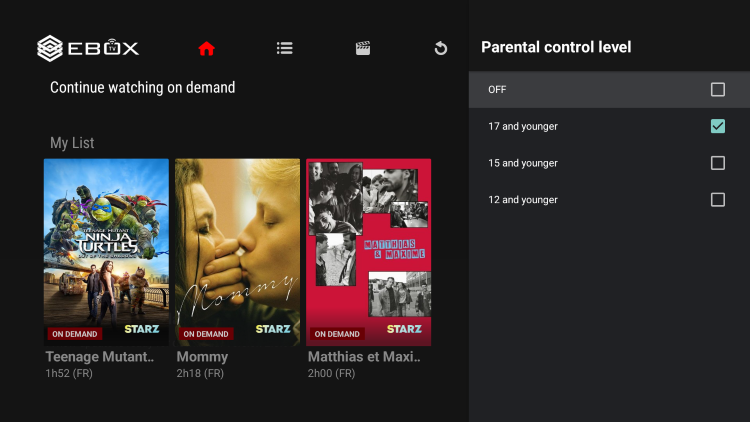
The parental control menu allows you to block content according to age group (12, 15, or 17 years old). You can also create or change your PIN in this menu. During the initial setup, you will be prompted to enter a new PIN.
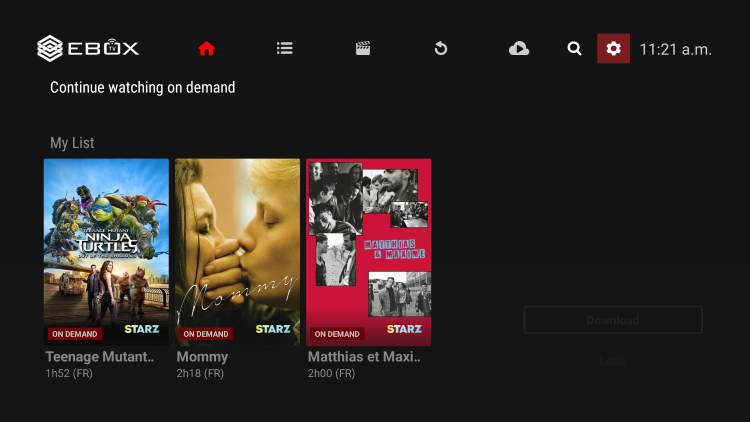
Access the EBOX TV main menu by pressing the “EBOX TV” or “BACK” button on the remote control and select the “Settings” menu identified by the gear icon in the upper right corner.
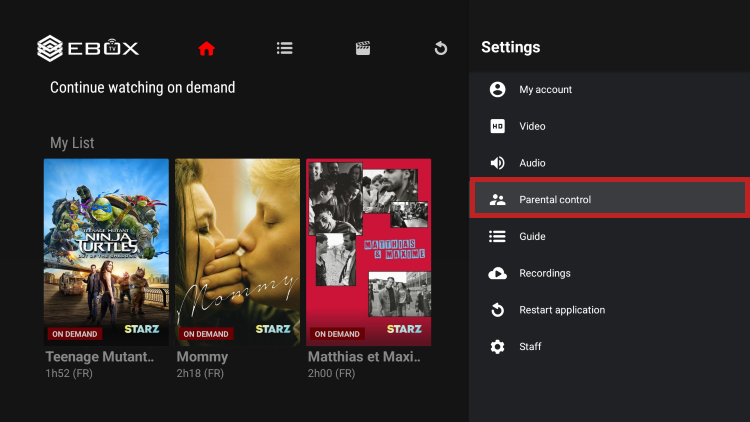
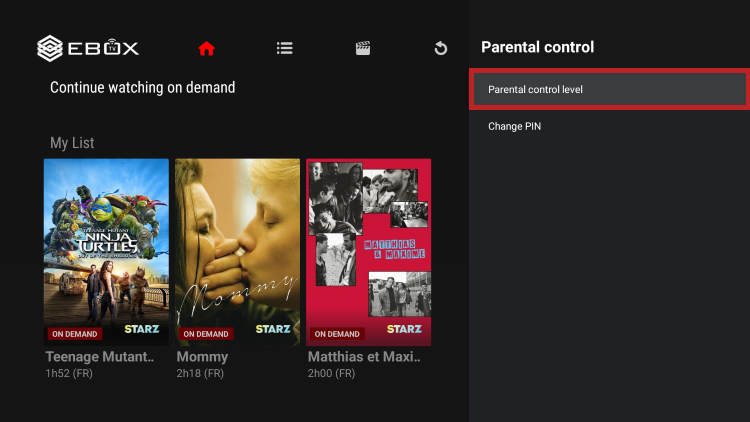
Next, select “Parental Control” and “Parental Control Level.”
You can choose the level of restriction you want: 12 years old and under, 15 years old and under, or 17 years old and under.
Reset the parental control PIN
To change the parental control PIN, access the EBOX TV main menu by pressing the “EBOX TV” or “BACK” button on the remote control and select the “Settings” menu identified by the gear icon in the upper right corner.
Then select “Parental Control” and “Change PIN.”
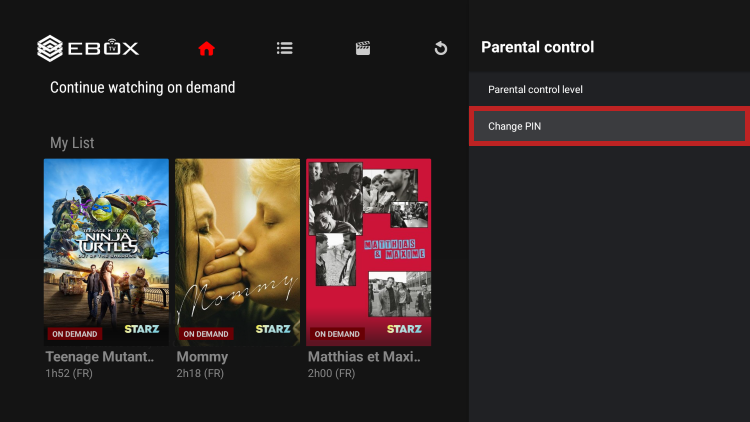
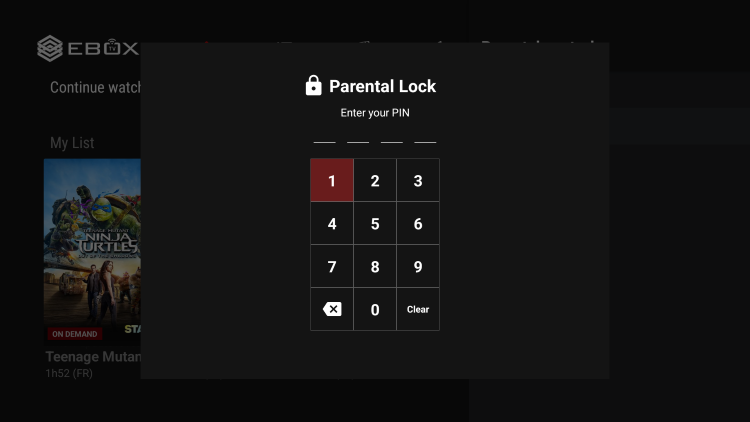
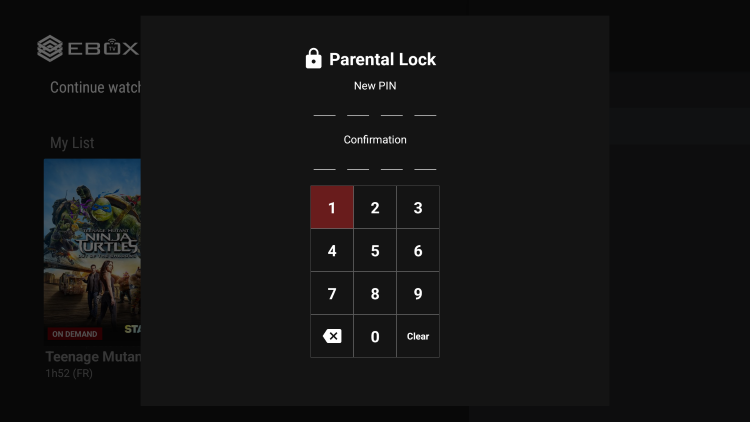
The app will ask you to enter your current PIN and invite you to create a new one.
If you have forgotten your PIN, you will need to contact EBOX technical support. An agent will be able to reset it for you.
EBOX Internet you want it?
Sign up now