How does recording shows and movies work?
Recording content, watching recorded shows and deleting recordings.
To use the cloud recording feature, you must first subscribe to a cloud recording package. Depending on your package, you can record 4 to 8 programs simultaneously while also watching other types of programming.
Recording
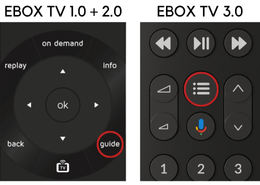
To record a show, you must first select it in the guide. Press the “GUIDE” button on your remote to open it.
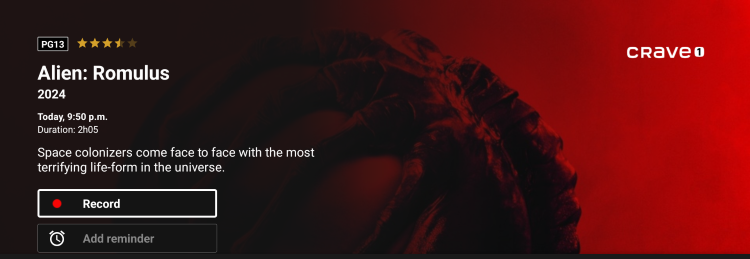
Choose the show you wish to record and press the “OK” button on your remote. Select the “Record” option displayed on the screen and press “OK” again.
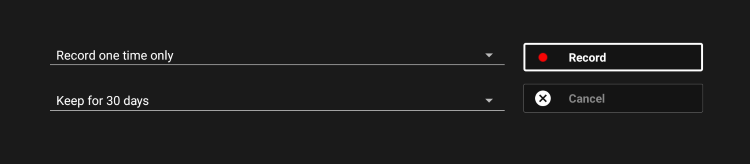
You will have several options to save your recording. You can choose to automatically delete your recordings after 7, 30, or up to 120 days. If your cloud recording storage becomes full, the oldest recordings will be deleted first to make space for new ones.
You may also choose to record all the episodes of the same series, record only once, record at the same time of day on that channel every week or record at the same time every day .
Checking planned recordings
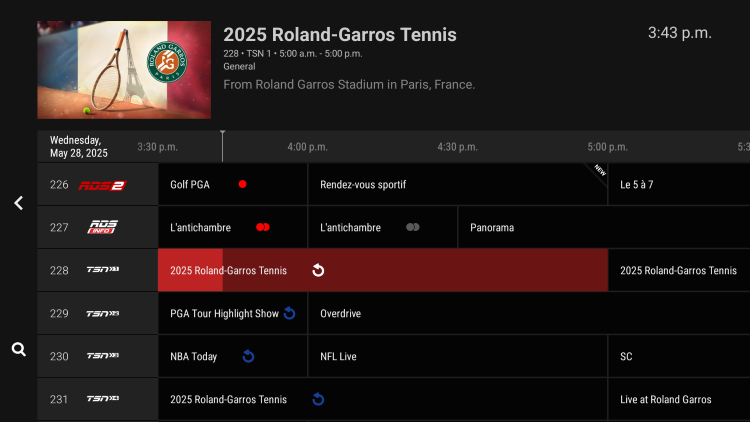
In the guide, a red dot will indicate the planned recording of a broadcast. In the case of a series, the red dot will be doubled to indicate that several recordings are planned.
Watching recorded shows and movies
The recordings are displayed in rows, in chronological order from the most recent in the home menu of the EBOX TV app. To access the “Home menu”, press the “EBOX TV” or “BACK” button on your remote and select the desired show.
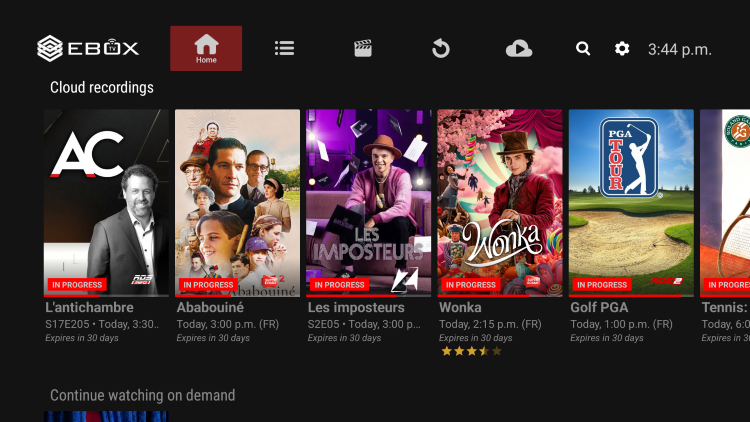
Then choose the “Watch now” option.

Deleting recorded content
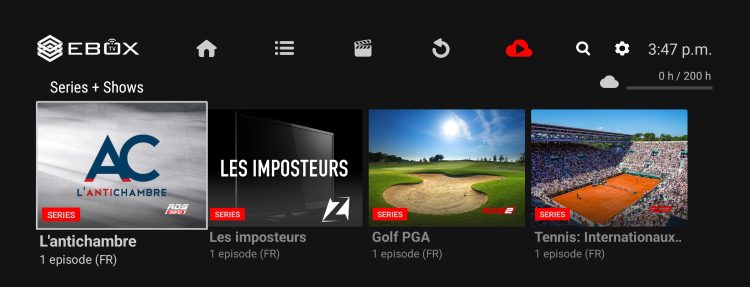
To delete a recording, go to the home page and select the “Recordings” menu. Choose the item you wish to delete and select the “Select and delete” option.
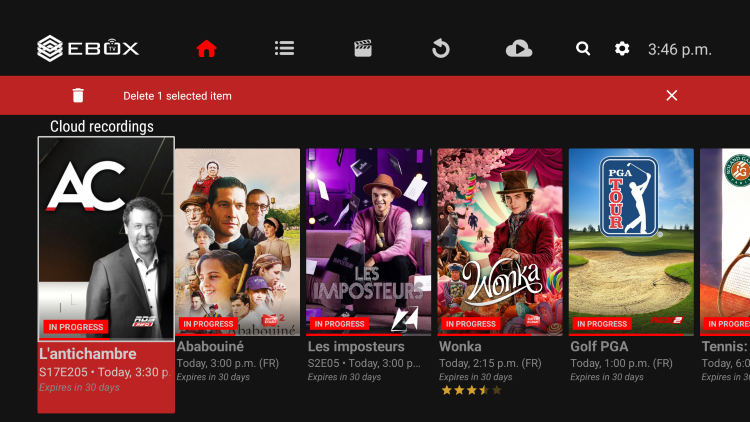
From the home menu, you may also press the “OK” button on your remote for 2 seconds to select and delete several recordings at once.
Managing upcoming recordings and automated series recording
The Recordings menu allows you to access all your recordings. Both completed and upcoming recordings can be viewed, as well as any recording conflicts when too many recordings are scheduledat the same time, depending on your plan limits.
Subscribing to the cloud recording service
You can add the cloud recording service in just a few clics on your customer zone. To find out how, visit this page: How can I add the cloud recording service to my EBOX TV plan?
Changing your cloud recording plan
Your cloud recording plan can be changed quickly and easily in your customer zone. To find out how, visit this page: How can I change my cloud recording plan?
EBOX Internet you want it?
Sign up now